QuickBooks Desktop Won’t Open? 8 Easy Fixes (2026)
Table of ContentsWhy QuickBooks Desktop Won’t Open After an UpdateStart Here: Quick Checks Before You TroubleshootFix the Program with QuickBooks Tool HubRename the QBWUSER.ini FileIs It the Program or Your Company File?Repair or Reinstall...

Table of Contents
You installed the latest update, restarted your computer, and now QuickBooks Desktop won’t open at all — or it launches, hangs, and disappears. It’s a frustrating spot to be in when your books are on the other side of that icon, but the good news is that an update-related startup problem is almost always fixable in a few minutes. When QuickBooks Desktop won’t open after an update, the cause is usually a half-finished install, a damaged preferences file, or a stuck background process rather than lost data. This guide covers the common causes and walks through the fixes in the order most likely to get you back to work.
Quick Answer
If QuickBooks Desktop won’t open after an update, fully restart your computer to finish any pending update, then right-click the QuickBooks icon and choose Run as administrator. If it still won’t launch, download the free QuickBooks Tool Hub and run Quick Fix my Program, then the Program Diagnostic Tool. Renaming the QBWUSER.ini file and repairing the installation resolve most remaining cases. Work through the fixes below in order and stop as soon as QuickBooks opens.
Why QuickBooks Desktop Won’t Open After an Update
When QuickBooks Desktop won’t open after an update, it’s usually one of these causes:
- Incomplete update: the update didn’t finish installing, leaving QuickBooks in a half-updated state or waiting on a reboot that never fully clears.
- Damaged QBWUSER.ini file: this small preferences file can be corrupted during an update, which stops the program from starting.
- Damaged installation files: program files can be altered or partially replaced mid-update, so QuickBooks can’t load.
- Stuck background processes: leftover QuickBooks processes from a previous session can block a new one from opening.
- Windows permission changes: a Windows update can change file or folder permissions that QuickBooks needs.
- A damaged company file: less common right after an update, but a corrupted data file can also stall startup.
Start Here: Quick Checks Before You Troubleshoot
Two minutes of basics resolves a surprising number of cases before you touch any tools:
- Restart your computer fully — not just QuickBooks. This lets a pending update finish and clears stuck processes.
- Click the QuickBooks icon once and wait. Double-clicking repeatedly can launch multiple instances that cancel each other out.
- Open QuickBooks without loading your company file: press and hold the Ctrl key while you double-click the icon, and keep holding until the No Company Open window appears. If it opens this way, the issue is likely your company file, not the program.
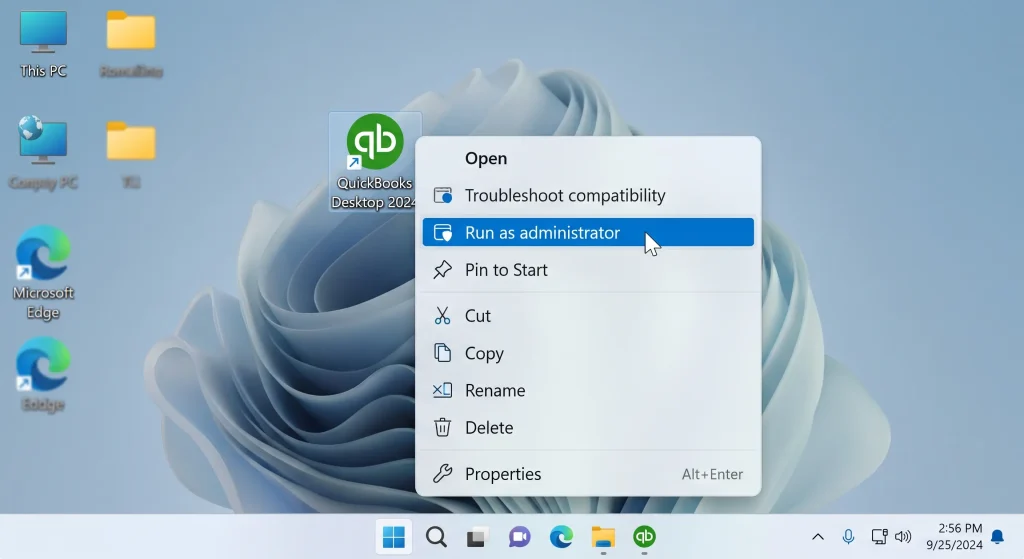
- Run QuickBooks as administrator: right-click the icon and choose Run as administrator. To make it permanent, right-click the icon, open Properties, go to the Compatibility tab, check “Run this program as an administrator,” and click Apply.
If QuickBooks still won’t open after these checks, move on to the Tool Hub fixes below.
Fix the Program with QuickBooks Tool Hub
When QuickBooks Desktop won’t open even after the quick checks, Intuit’s free QuickBooks Tool Hub bundles the repair utilities you need. Its official “QuickBooks Desktop won’t open” guide recommends running two tools in sequence. First, download the Tool Hub from Intuit, install it, and open it from your desktop.
Step 1 — Quick Fix my Program:
- In the Tool Hub, select Program Problems.
- Select Quick Fix my Program. This closes stuck background processes and runs a quick repair.
- Start QuickBooks Desktop and try to open your data file.
Step 2 — QuickBooks Program Diagnostic Tool:
- Back in the Tool Hub, select Program Problems, then QuickBooks Program Diagnostic Tool (or Install Diagnostic Tool under Installation Issues).
- Let it run — it can take up to 20 minutes, so don’t interrupt it.
- Restart your computer, then relaunch QuickBooks.
Rename the QBWUSER.ini File
If QuickBooks Desktop won’t open even after the Tool Hub repairs, a damaged QBWUSER.ini preferences file is a likely culprit — and renaming it forces QuickBooks to build a fresh one. Intuit’s “QuickBooks has stopped working” article documents this step in detail.
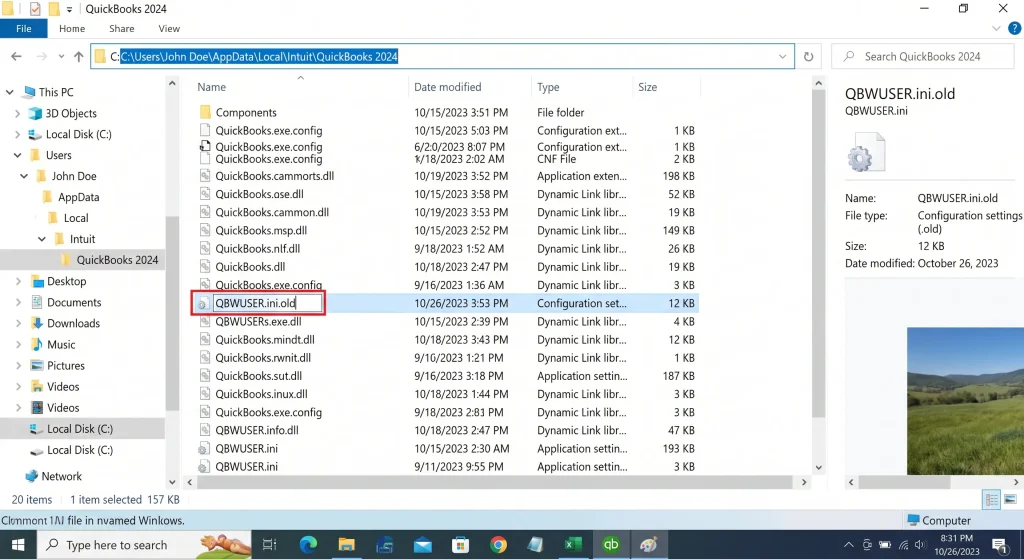
- Open the folder: Users\[Your user name]\AppData\Local\Intuit\QuickBooks [year]. You may need to enable hidden files and folders to see it.
- Right-click the QBWUSER.ini file, select Rename, and add .old to the end (QBWUSER.ini.old).
- Do the same for the EntitlementDataStore.ecml file in the same area.
- Open QuickBooks again. It will create new versions of both files automatically — the only change you’ll notice is an empty recent-company-files list.
Is It the Program or Your Company File?
Once QuickBooks opens, confirm whether the program or your data file was the problem. From the No Company Open window, open one of the sample company files:
- Sample opens, your file doesn’t: the issue is your company file. Copy it to a local folder (not a network drive) and open it from there, or use File > Utilities > Verify Data and Rebuild Data to repair it. If it still won’t open, restore a recent backup — or let our U.S.-based support team help you rebuild the file.
- Sample file also won’t open: the QuickBooks installation itself is damaged — move on to repairing or reinstalling below.
Repair or Reinstall QuickBooks Desktop
If QuickBooks Desktop won’t open and a sample file won’t either, replace the damaged program files with a repair:
- Close QuickBooks and open Control Panel > Programs and Features.
- Select QuickBooks, then choose Uninstall/Change and select Repair.
- Let the repair finish, restart your computer, and open QuickBooks.
If a repair doesn’t work, a clean reinstall usually does. You can download a fresh installer from Intuit’s official download page and reinstall using your existing license and product number. If your license has expired or you need a fresh genuine copy, Desktop License offers activation-ready QuickBooks Desktop licenses with installation guidance to get you reactivated quickly.
When the Update Itself Is the Culprit
If the trouble began right after a Windows update rather than a QuickBooks one, the update may have changed a component QuickBooks relies on. Confirm the QuickBooks update actually completed, and make sure Windows is fully up to date and restarted. If a specific Windows update triggered the problem, uninstalling that recent update — or running an in-place Windows repair — can restore normal startup. It’s also worth confirming your version is still supported; running QuickBooks on a current, supported edition like Pro Plus avoids compatibility gaps that older, unsupported versions hit after Windows changes.
How to Avoid This After Future Updates
The best fix is prevention. These habits make it far less likely that QuickBooks Desktop won’t open after a future update:
- Always close QuickBooks completely and back up your company file before installing an update.
- Let updates and restarts finish fully before reopening the program.
- Keep the QuickBooks Tool Hub installed so repair tools are one click away when you need them.
- Install QuickBooks and Windows updates when you have a few minutes to spare, not in the middle of urgent work.
Frequently Asked Questions
Why won’t my QuickBooks Desktop open after an update?
Usually because the update didn’t finish cleanly, left a stuck background process, or damaged the QBWUSER.ini preferences file. Restarting, running as administrator, and using the QuickBooks Tool Hub resolve most cases.
What is the first thing to try when QuickBooks Desktop won’t open?
Fully restart your computer to complete any pending update, then right-click the QuickBooks icon and choose Run as administrator before moving on to the Tool Hub repair tools.
Will renaming QBWUSER.ini delete my data?
No. QBWUSER.ini only stores program preferences, not your accounting data. Renaming it just resets those preferences and clears your recent-files list; QuickBooks rebuilds the file automatically.
How do I know if it’s the program or my company file?
Open a sample company file from the No Company Open window. If the sample opens but your file doesn’t, the issue is your company file. If neither opens, the QuickBooks installation is damaged.
Do I need to reinstall QuickBooks to fix this?
Rarely. Most update-related startup problems are fixed with Quick Fix my Program, the Program Diagnostic Tool, or renaming QBWUSER.ini. Reinstalling is a last resort when a repair doesn’t work.
Could an expired license stop QuickBooks from opening?
An expired subscription can block access to the program. If your license has lapsed, renew it or install a genuine license, then reactivate to restore access.
Final Thoughts
When QuickBooks Desktop won’t open after an update, work the fixes from simplest to most involved: restart, run as administrator, use the Tool Hub’s Quick Fix my Program and Program Diagnostic Tool, rename QBWUSER.ini, and finally repair or reinstall. One of these clears the problem in nearly every case, and your accounting data stays safe throughout. If you’re still stuck after trying them, reach out to a support specialist or check the frequently asked questions for more help getting back into your books.
Compare current Desktop licenses
Review platform, version year, license type, and included users before ordering.