How to Install QuickBooks Desktop (Easy 2026 Guide)
Table of ContentsWhat You Need Before You Install QuickBooks DesktopQuickBooks Desktop System RequirementsHow to Download QuickBooks DesktopHow to Install QuickBooks Desktop on WindowsHow to Install QuickBooks Desktop on a MacHow to Activate QuickBooks DesktopInstalling...

Table of Contents
Getting your accounting software up and running doesn’t have to be complicated. Whether you’re setting up a brand-new machine or moving to a fresh version, learning how to install QuickBooks Desktop is a straightforward process once you have the right files and your license details in hand. This guide walks you through every step checking system requirements, downloading the installer from Intuit, entering your license and product numbers, choosing the right install type, and activating the software — for both Windows and Mac.
Quick Answer
To install QuickBooks Desktop, confirm your PC or Mac meets the system requirements, download the installer from Intuit’s official Downloads & Updates page, run the QuickBooks.exe file, enter your license and product numbers, choose Express or Custom install, then activate through the Help menu. The whole process usually takes 15–30 minutes. If you don’t have a genuine license yet, you’ll need one before you can activate — browse genuine QuickBooks Desktop licenses.
| Time required | Difficulty | What you need |
| 15–30 minutes | Beginner | License + product number, admin access, internet |
What You Need Before You Install QuickBooks Desktop
Before you start, gather three things. First, a genuine license and product number — these unlock activation and confirm your copy is legitimate. If you bought a boxed copy, the numbers sit on a scratch-off label; if you purchased digitally, they arrive by email. When you order a QuickBooks Pro Plus or QuickBooks Premier license from Desktop License, for example, your activation-ready key and product number are emailed after your order is verified, so everything is on hand before you begin.
Second, an administrator account on the computer, since Windows blocks software installs without one. Third, a stable internet connection for the download, license validation, and updates. It also helps to close background programs and temporarily pause antivirus software, which can occasionally interfere with the installer.
QuickBooks Desktop System Requirements
Verify your machine meets Intuit’s current specs before you install QuickBooks Desktop. Requirements vary slightly by edition and version year, and Intuit publishes exact figures for Pro, Premier, and Enterprise on its official site. As a general baseline for recent versions:
| Component | Recommended minimum |
| Operating system | Windows 10 or 11 (64-bit), fully updated |
| Processor | 2.4 GHz or faster |
| RAM | 8 GB (16 GB for multi-user setups) |
| Disk space | 2.5 GB+ free, plus room for your company file |
| Screen resolution | 1280 × 1024 or higher |
| Other | Microsoft .NET 4.8 runtime, admin rights, internet connection |
| Mac | A supported macOS version for your QuickBooks Mac edition |
If you’re on an Apple computer, the QuickBooks Mac Plus edition is built specifically for macOS and follows a slightly different install path, covered below.
How to Download QuickBooks Desktop
Always download QuickBooks Desktop from Intuit’s official Downloads & Updates page, never from a mirror or repackaged installer — repackaged files are a common source of failed installs and security risks.
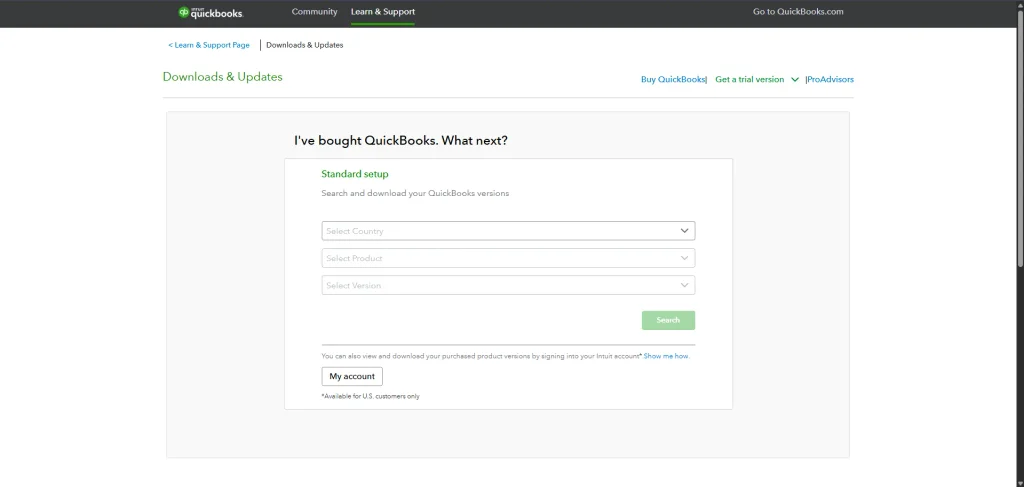
- Open Intuit’s Downloads & Updates page.
- Select your country, product (Pro, Premier, or Enterprise), and version year.
- Click Search, then Download to save the installer (QuickBooks.exe).
- Save the file somewhere easy to find, like your Windows desktop or Downloads folder.
You’ll need your license and product number to install QuickBooks Desktop. If you can’t find them, check your purchase confirmation email, sign in to the Products & Services section of your Intuit account, or look them up in Intuit’s CAMPS portal. Customers who buy from Desktop License receive both numbers by email, along with written installation guidance.
How to Install QuickBooks Desktop on Windows
Once the installer is downloaded, here’s how to install QuickBooks Desktop on a Windows PC:
- Double-click the QuickBooks.exe file to launch the installer. If it doesn’t start automatically, open it from the folder where you saved it.
- When the Intuit QuickBooks Desktop Installer window appears, click Next, then read and accept the software license agreement by choosing Accept & Continue.
- Enter your license number and product number when prompted, then click Next. If you don’t have them handy, click Locate your License & Product Number and enter the business phone number used at purchase to receive them by email or text.
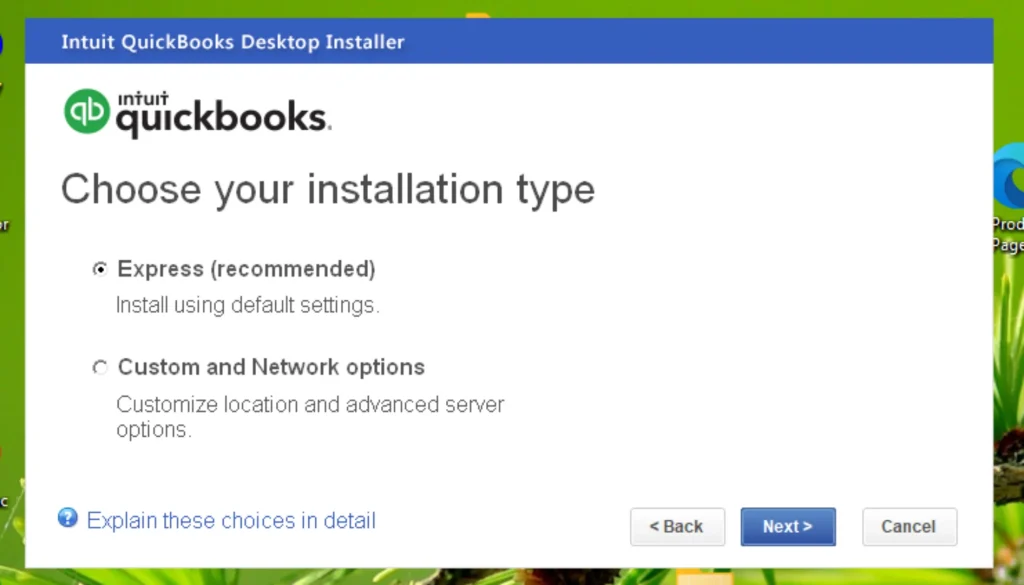
- Choose your installation type (see the two options below).
- Express Install — best for beginners and single-computer setups. It uses default settings and installs over any previous version.
- Custom and Network Install — best for multi-user setups. It lets you choose the install location and set whether the PC hosts company files for other users.
- Click Install and wait for it to finish. Restart your computer if the installer asks you to.
How to Install QuickBooks Desktop on a Mac
Installing the Mac edition is a little different:
- Confirm your Mac meets the system requirements for your QuickBooks Mac version.
- Download your QuickBooks Mac or Mac Plus version, or use the CD installer if you bought a physical copy.
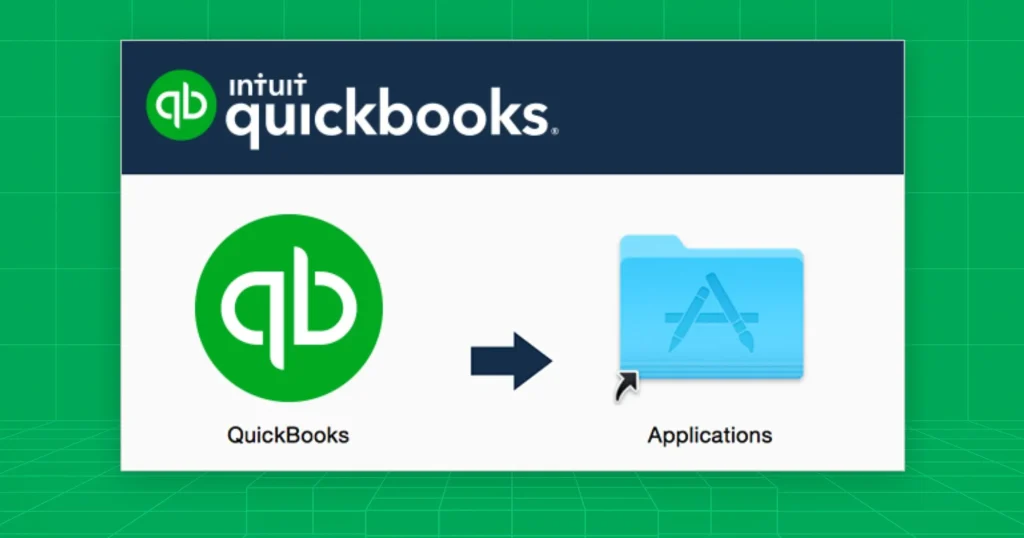
- Close all open applications, then open the installer (.dmg) file. The installation window opens automatically.
- Drag the QuickBooks icon into the Applications folder.
- Launch QuickBooks and register it by going to File > Register QuickBooks, then enter your product and license numbers.
How to Activate QuickBooks Desktop
Activation links your license to your Intuit account and completes setup. QuickBooks usually prompts you on first launch, but you can start it anytime:
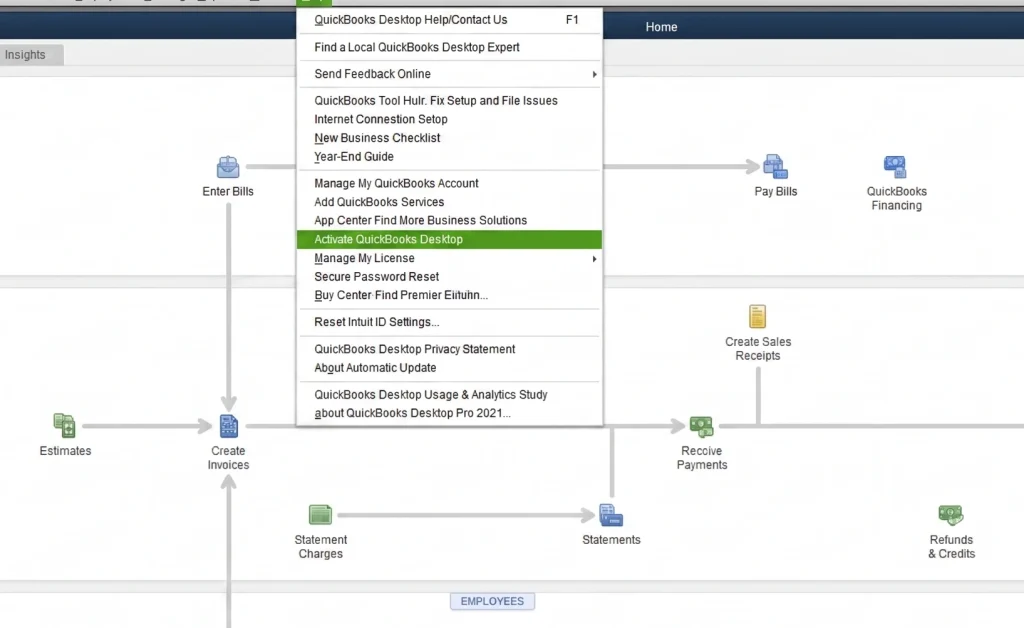
- On Windows: open QuickBooks, go to Help > Activate QuickBooks Desktop, and sign in with your Intuit account (or create one on the activation screen).
- On Mac: go to File > Register QuickBooks and enter your details.
After activating, go to Help > Update QuickBooks Desktop to install the latest maintenance release, then open or create your company file to start working. Remember, you can only activate with a genuine license — if you still need one, Desktop License offers genuine, activation-ready keys with free installation support.
Installing QuickBooks Desktop on More Than One Computer
One of the most common questions is whether you can install QuickBooks Desktop on multiple computers. The answer depends on your license. A single-user license allows one active installation, while multi-user licenses let you install the software on several machines — one for each paid user seat. If you need more seats, you can add users or step up to an edition like QuickBooks Enterprise, which supports up to 40 users.
To install QuickBooks Desktop on a second computer, download the same version, run the installer, and enter the same license and product number. During a Custom and Network Install, set each machine’s role — workstation, workstation plus server, or server only — so QuickBooks knows which computer hosts the shared company file. If you’re unsure how many seats your license covers, the team at Desktop License can confirm the right edition for your number of users.
What to Do If QuickBooks Desktop Won’t Install
If you can’t install QuickBooks Desktop because the setup stalls or throws an error, work through these fixes in order:
- Check your date and time settings — an incorrect system clock can block activation.
- Temporarily disable antivirus software that may be flagging the installer.
- Make sure Windows is fully updated and you’ve restarted for any pending updates.
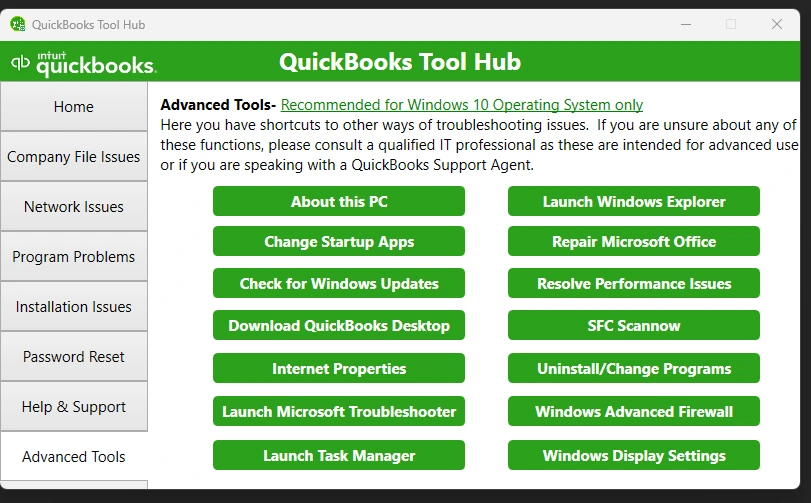
- Download and run the QuickBooks Tool Hub, then select Program Problems > Quick Fix my Program.
- Re-download a fresh installer from Intuit in case the original file was corrupted.
If problems persist, Intuit’s activation and license troubleshooting guide walks through additional steps, and Desktop License customers can reach U.S.-based support by phone or email.
Frequently Asked Questions
How long does it take to install QuickBooks Desktop?
Most installations take 15–30 minutes, depending on your internet speed and whether you choose Express or Custom install.
Can I install QuickBooks Desktop on two computers?
Yes, if your license covers multiple users. Each installation uses one user seat, so a two-user license can be installed on two machines. Single-user licenses are limited to one active installation.
Where do I find my license and product number?
Check your purchase confirmation email, the Products & Services section of your Intuit account, or the CAMPS portal. In an existing installation, press F2 to open the Product Information window. Desktop License emails both numbers after your order is verified.
Can I install QuickBooks Desktop on a new computer?
Yes. To install QuickBooks Desktop on a new machine, download your version from Intuit, run the installer, and enter your existing license and product number. You can also use Intuit’s migrator tool to move your files and settings.
Do I need internet to install QuickBooks Desktop?
You need an internet connection to download the installer and to activate the software. Once activated, QuickBooks Desktop runs locally on your computer.
Is it safe to download QuickBooks Desktop from third-party sites?
Download the installer only from Intuit’s official Downloads & Updates page. For the license itself, buy from Intuit or a transparent reseller that provides genuine, verified keys.
Final Thoughts
Now you know how to install QuickBooks Desktop from start to finish. It comes down to five steps: check your system, download from Intuit, enter your license and product number, choose your install type, and activate. Follow them in order and you’ll be up and running in under half an hour. If you still need a genuine license — or want a hand with setup — Desktop License offers activation-ready QuickBooks Desktop licenses with free installation support from a U.S.-based team.
Compare current Desktop licenses
Review platform, version year, license type, and included users before ordering.